
How to Hide Blue Ticks in GB WhatsApp: Complete Guide
Blue ticks in WhatsApp reveal when you’ve read someone’s message, creating social pressure to respond immediately. Many users want to read messages privately without triggering read receipts that notify senders. GB WhatsApp offers powerful privacy features that let you hide blue ticks while maintaining full messaging functionality.
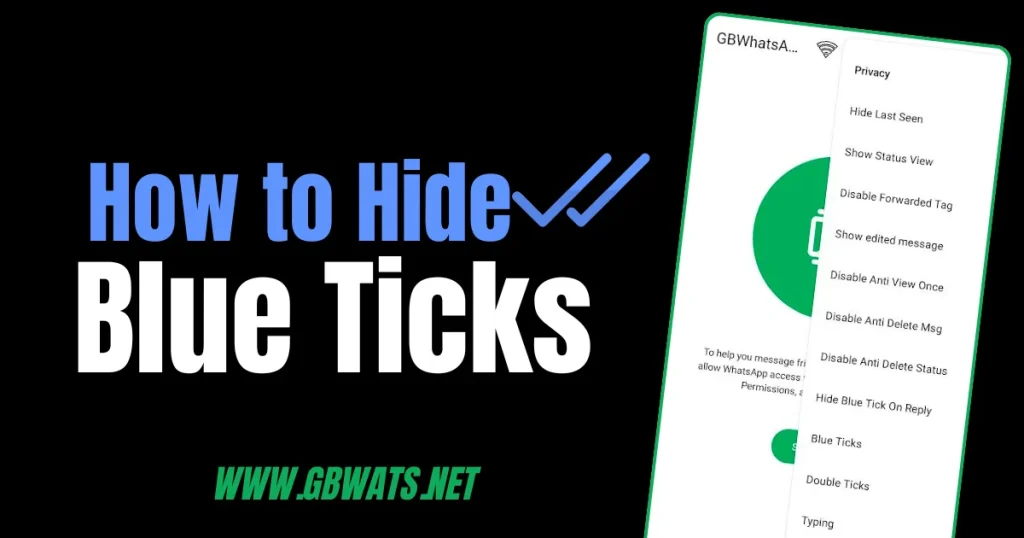
Understanding WhatsApp Blue Ticks
Blue ticks appear when you open and read a message in WhatsApp conversations. The first grey tick indicates message delivery to the server, while the second grey tick confirms delivery to the recipient’s device. When both ticks turn blue, the sender knows you’ve opened and read their message.
Official WhatsApp allows disabling read receipts, but this limitation prevents you from seeing when others read your messages, too. GB WhatsApp solves this problem with advanced privacy controls that work independently for incoming and outgoing messages.
Why Hide Blue Ticks in GB WhatsApp
Privacy is the primary reason users disable read receipts in their messaging apps. You can read messages during busy times without feeling obligated to respond immediately. This reduces social pressure and gives you control over when to engage in conversations.
Professional users often need to review messages during meetings or work hours without indicating availability. Hiding blue ticks lets you stay informed while maintaining appropriate response boundaries. The feature also prevents unnecessary conflicts with contacts who expect instant replies after seeing blue ticks.
How GB WhatsApp Privacy Features Work
GB WhatsApp separates privacy controls for reading messages from controls for showing your own read receipts. You can disable blue ticks for messages you receive while still seeing when others read your messages. This asymmetric privacy control gives you significant advantages over official WhatsApp’s limitations.
The app achieves this by modifying how it reports read status to WhatsApp servers. When you read a message with blue ticks disabled, GB WhatsApp doesn’t send the read confirmation signal. However, the app still receives and displays read confirmations from other users normally.
Step-by-Step Guide to Hide Blue Ticks in GBWA
Step 1: Open GB WhatsApp Privacy Settings
Launch GB WhatsApp on your device and tap the three-dot menu icon in the top right corner. Select Settings from the dropdown menu and look for the Account or Privacy option. Tap on Privacy to access comprehensive privacy control settings.
Step 2: Locate Read Receipt Controls
Scroll through the privacy settings until you find the “Read Receipts” or “Blue Ticks” option. GB WhatsApp typically groups this under message privacy controls along with other features. The setting may also appear as “Disable Read Receipts” depending on your app version.
Step 3: Disable Blue Ticks
Toggle off the Read Receipts switch to disable blue ticks for all incoming messages. The setting applies immediately without requiring an app restart or confirmation. Once disabled, senders won’t see blue ticks when you read their messages, only grey delivery ticks.
Step 4: Configure Advanced Privacy Options
GB WhatsApp offers granular control over privacy features beyond simple on-off switches. You can enable the “Second Tick” option to show only one grey tick instead of two. This makes it appear as if messages haven’t reached your device yet, providing even stronger privacy.
Some GB WhatsApp versions include contact-specific privacy controls, letting you hide blue ticks for specific people only. Access this through individual chat settings by tapping the contact name and selecting custom privacy options.
Additional Privacy Features in GB WhatsApp
Hide Online Status
GB WhatsApp allows hiding your online status so contacts can’t see when you’re using the app. Enable this in Privacy Settings under “Hide Online Status” to appear offline even while actively chatting. You can still see when others are online unless they’ve hidden their status too.
Disable Typing Indicator
The typing indicator shows contacts when you’re composing a message in their chat window. GB WhatsApp lets you disable this feature, so your typing activity remains private. Navigate to Privacy Settings and toggle off “Show Typing Status” for complete discretion.
Hide Recording Status
Voice message recording status alerts contacts when you’re recording an audio message for them. Disable this indicator through Privacy Settings to record voice notes without others knowing. This feature works similarly to hiding typing indicators for maximum privacy.
Customize Last Seen Visibility
Control who can see your last seen timestamp through GB WhatsApp’s advanced privacy controls. You can show last seen to everyone, contacts only, selected contacts, or nobody. This flexibility exceeds official WhatsApp’s limited last seen options significantly.
Managing Privacy for Group Chats
Blue tick privacy settings apply to group conversations differently from individual chats. When you disable blue ticks in groups, other members won’t see your read receipts. However, group admins can still see delivery statistics showing how many members received and read messages.
GB WhatsApp offers group-specific privacy controls through individual group settings menus. Long-press on a group chat, select Group Info, and access privacy options for that specific group. You can customize read receipt visibility differently for each group you participate in.
Understanding Privacy Limitations
Hiding blue ticks doesn’t make you completely invisible on WhatsApp or GB WhatsApp. Other indicators, like last seen timestamp and online status, can still reveal your activity. Comprehensive privacy requires configuring multiple settings together rather than just disabling read receipts alone.
Status updates you view will still appear to the poster in their view list unless you enable “Hide Status View” separately. Downloading someone’s status media may also reveal your interest despite hidden blue ticks. Consider all privacy aspects holistically for maximum protection.
Balancing Privacy and Communication Etiquette
Disabling blue ticks may create misunderstandings with contacts expecting read confirmation feedback. Some people interpret hidden read receipts as avoidance or disrespect in personal relationships. Communicate your privacy preferences clearly to important contacts to prevent unnecessary conflicts.
Professional contexts may require showing read receipts to demonstrate responsiveness and accountability. Consider enabling blue ticks for work-related contacts while keeping them disabled for personal conversations. GB WhatsApp’s contact-specific settings make this balance achievable easily.
Troubleshooting Blue Tick Privacy Issues
Blue Ticks Still Appearing
If blue ticks continue appearing after disabling the setting, restart GB WhatsApp completely by force-stopping through Android settings. Some versions require manual cache clearing for privacy settings to apply properly. Go to Settings > Apps > GB WhatsApp > Storage > Clear Cache.
Ensure you’re using the latest GB WhatsApp version with updated privacy features. Older versions may have bugs preventing proper read receipt disabling. Download the newest version from trusted sources and reinstall if necessary.
Privacy Settings Not Saving
Privacy settings that don’t persist after app restart indicate data corruption or permission issues. Grant GB WhatsApp all necessary permissions through Android Settings > Apps > GB WhatsApp > Permissions. Enable storage and phone permissions for proper settings retention.
Some aggressive battery optimization settings reset GB WhatsApp configurations when the app closes. Disable battery optimization for GB WhatsApp in your device’s battery management settings to prevent automatic setting resets.
Frequently Asked Questions
How to Hide Blue Ticks in GB WhatsApp: Complete Privacy Guide
Yes, newer GB WhatsApp versions support contact-specific privacy controls. Access individual chat settings and configure read receipt visibility separately for each contact.
Will hiding blue ticks affect my ability to see others’ read receipts?
No, GB WhatsApp allows you to hide your blue ticks while still seeing when others read your messages. This asymmetric privacy is a key advantage over official WhatsApp.
Do voice messages show blue ticks when disabled?
Voice message read receipts follow the same privacy settings as text messages. When you disable blue ticks, listened voice notes won’t show blue playback indicators either.
Can group admins see if I read messages with hidden blue ticks?
Group admins can see aggregate read statistics, but not individual member read status, when you hide blue ticks. Your specific read activity remains private even in groups.
Conclusion
Hiding blue ticks in GB WhatsApp gives you complete control over your messaging privacy without sacrificing functionality. The simple privacy settings take seconds to configure but provide lasting benefits for stress-free communication. Combine blue tick hiding with other privacy features for comprehensive protection while using GB WhatsApp daily.